Check Style - Creating a custom check template quickly. How to create a custom check template.
You need to create a custom check style but do not want to start with a blank sheet. Editing a default check style and save it as a new custom check style.
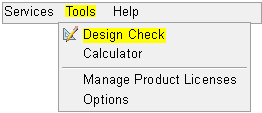
1. Open VersaCheck. Select Tools - Design Check.
Image 1
2. On the Check Page Setup screen select OK.
Image 2

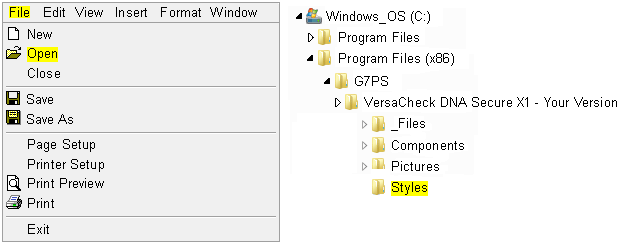
3. Select File Open. Navigate the to following location - C:\\Program Files or Program Files (x86)\G7PS\VersaCheck Your Version\Styles. Select one of the templates that is closest to the type of check you wish to create.
Image 3
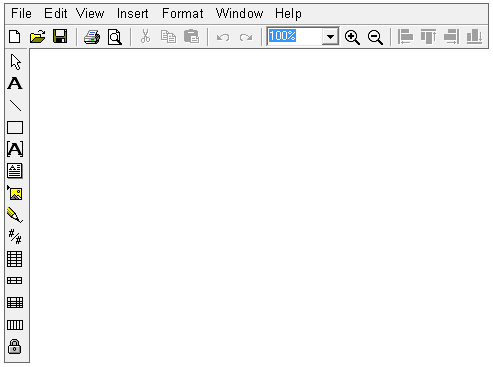
4. Use the tools available to add elements to the check. You can move the elements already present on the check by clicking and holding then dragging to the desired location. You can delete items by clicking on the element once then pressing the Delete key.
Image 4
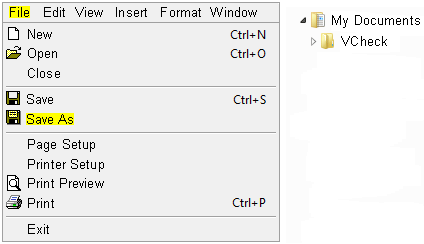
5. Once you have made all the changes you wish to the template, select File - Save As. We suggest that you save the template in the VCheck folder where your data file is stored. This allows you to only make a back up of one folder if you need to move the software (this folder will have all data and templates). Navigate to My Documents - VCheck. Give the template a descriptive name and select Save.
Image 5
6. Now you will need to add your template to your list so that it can be chosen. Click on the link below for the article on how to add a check template.
http://www.versacheck.com/web/support/article.aspx?id=769