How to share a license file. Sharing the validation code on multiple computers.
There are multiple computers on the system. The users needs to share the license file/validation code.
By default, VersaCheck is setup for each computer to have it's own validation code. If you have a network and administrative permissions you can use the directions below to share the license file.
How to share a license file.
There are several steps to follow to share the license file. You are going to want to complete STEPS 1-3 on COMPUTER A.
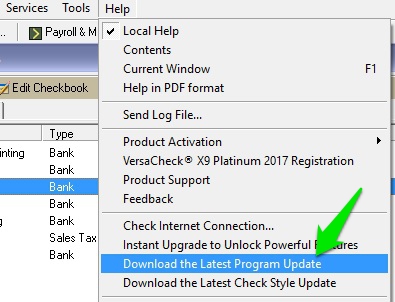
1) Make sure the all of the Versacheck programs being used are UPDATED to the most recent file version. To do that, go to HELP - DOWNLOAD THE LATEST PROGRAM UPDATE...
Image 1
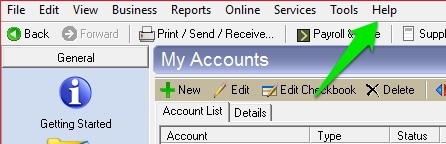
Image 2
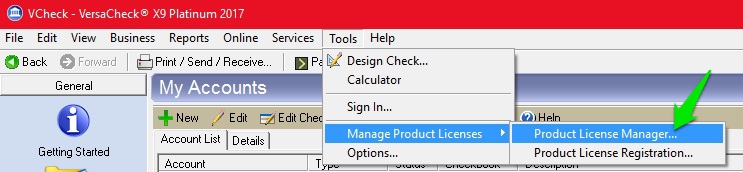
2) Once the program is updated, go to the license manager in the Versacheck program, TOOLS - MANAGE PRODUCT LICENSES - PRODUCT LICENSE MANAGER.
Image 3
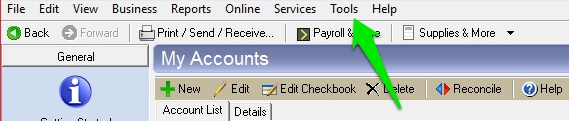
Image 4
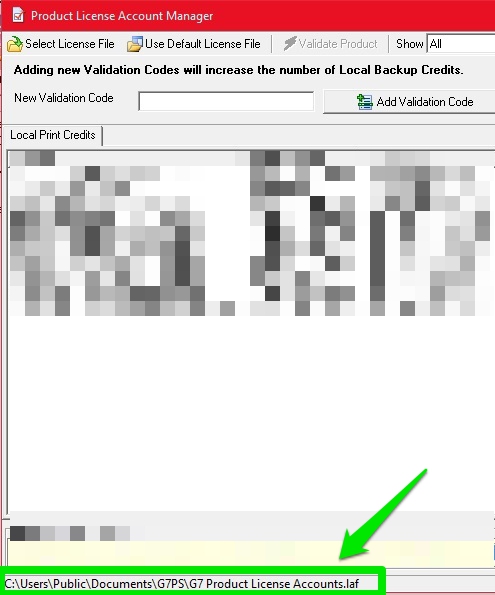
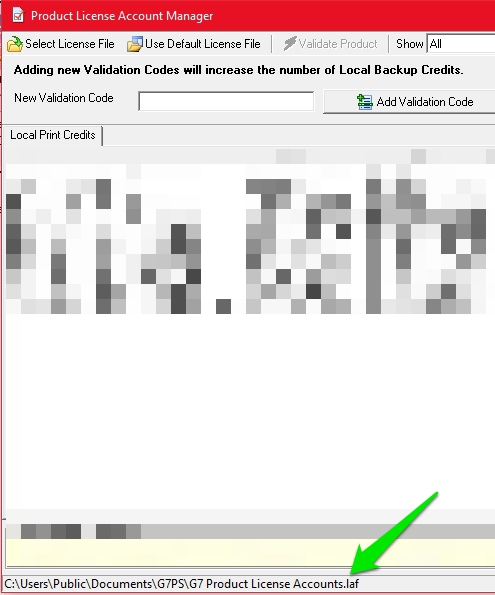
3) At the bottom of the license manager is the location of the current license file, which is the G7 PRODUCT LICENSE ACCOUNTS.LAF. You need to copy that file and place it on a network in a shared folder that every computer you are going to be using can see.
Image 5
****The first part of the process is now complete. Once you have successfully copied the license file to the network, you know need to SELECT THE FILE in the Versacheck program. You need to do this for EACH COMPUTER you are using, including COMPUTER A.
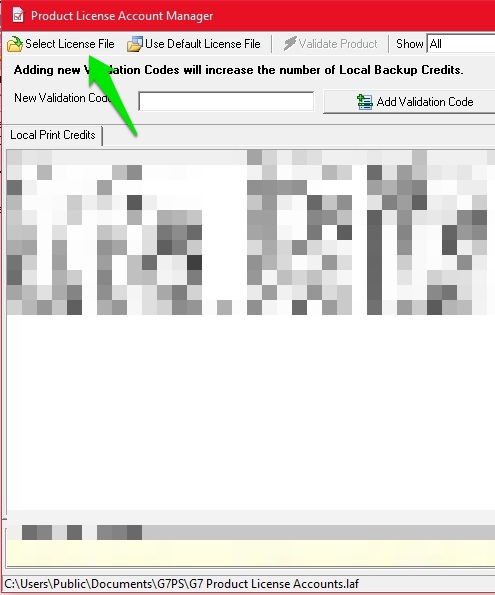
4) Open the license manager again the Versacheck, TOOLS - MANAGE PRODUCT LICENSES - PRODUCT LICENSE MANAGER. Now you need to click the SELECT LICENSE FILE button in the license manager.
Image 6
5) Browse to the shared folder on your network where you placed the license file and select it.
Now you are sharing your license file. Once you select the license file, the path at the bottom of the license manager will change. The path it becomes should be IDENTICAL ON ALL OF THE COMPUTERS you are sharing the license file on...
Image 7