General - Setting up a new account. in X1.
This process is for use with the X1 version of VersaCheck.
1. Open your version of VersaCheck X1.
2. Select My Accounts from the list of icons along the left side of the main VersaCheck screen.
Image 1

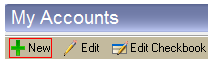
3. From the My Accounts screen click on the "New" option.
Image 2
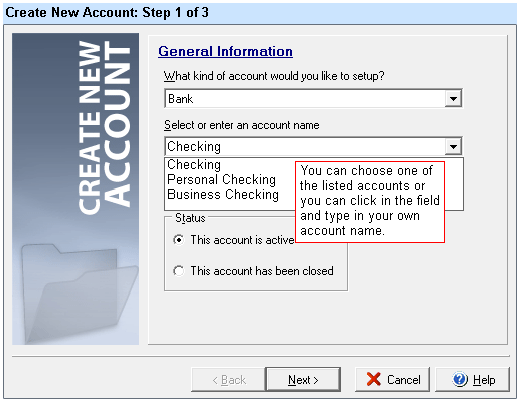
4. Fill out the information required. If the "Account Name" has been used already, simply click in that field and delete the existing name. Type the name of the account you wish to use.
Example: If you have choosen Business Checking but there is already a Business Checking account you simply need to place a number after the wording (Business Checking 1 or Personal Checking 2). You can also name the account any name you wish (Bob's Personal, Sue Account, ect.). Click "Next" when complete.
Image 3
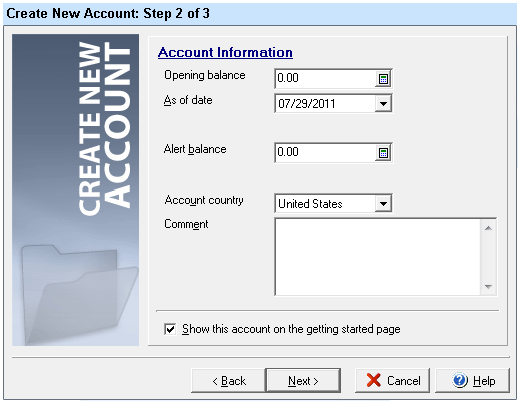
5. Fill out the information that applies for this account. If you wish to use an opening balance enter it. If you wish to be notified when the balance reaches a certain level enter that number. You can leave any of these fields blank if you wish. Click "Next" when complete.
Image 4
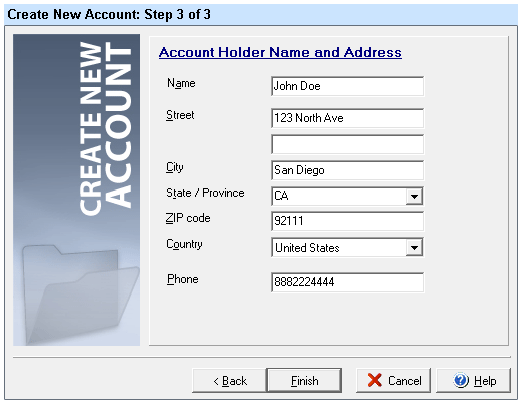
6. This information will print on the check. Enter the correct information as it applies to the checking account. Click on "Finish" when complete.
Image 5
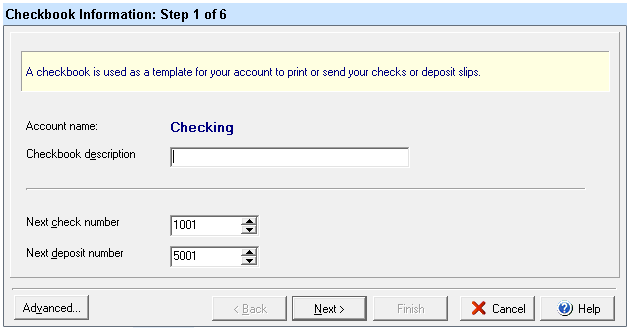
7. The Check Information window will appear. On this screen you will enter a description (this is for your purposes only and can be anything you wish). You will also enter the first check number to be printed here and a deposit slip number if applicable. CLick "Next" when complete.
Image 6
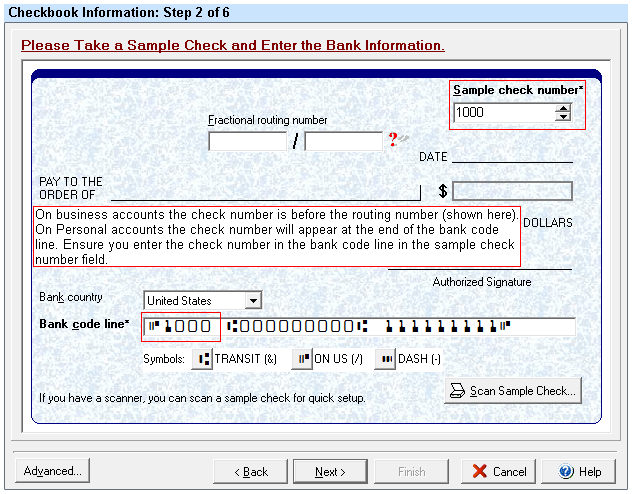
8. Step 2 of 5 will appear and you may see a pop up that says you can scan your check if you have a scanner. click on the "OK" button to continue.
Now you will need a printed check from your bank or a print out from your bank with the bank code line. Click in the "Bank Code Line" field and enter the bank code line EXACTLY as it appears on the sample check/print out from the bank. The check number on the sample check/print out has to be entered in the top right corner under "Sample Check Number". This is for setup purposes only and will not be the check number used when printing checks. The first check number was entered on Step 1 of 5. Click on the "Next" button when finished.
Image 7
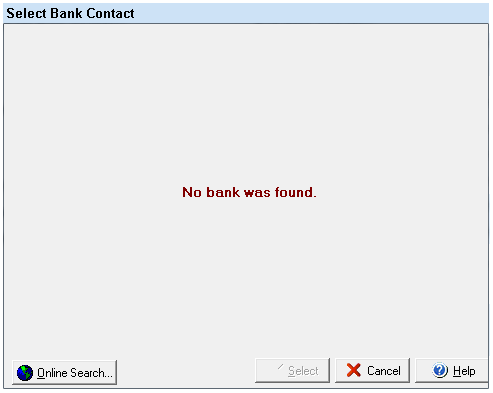
9. If the next screen appears and says there was no bank found or does not list your bank, simply click on the "Cancel" button. If you bank does appear click on the appropriate one to highlight and click on the "Select" button.
Image 8
10. If you clicked the "Cancel" button in the previous step you will be presented with an empty Bank Name and Address screen. Click in the appropriate field and fill out the form. Use the information printed on your sample check. Click "Next" when complete.
Image 9

11. A window will appear that explains the benefits of the DNA check printing. Read the provided information and click on the "Next" button when finished.
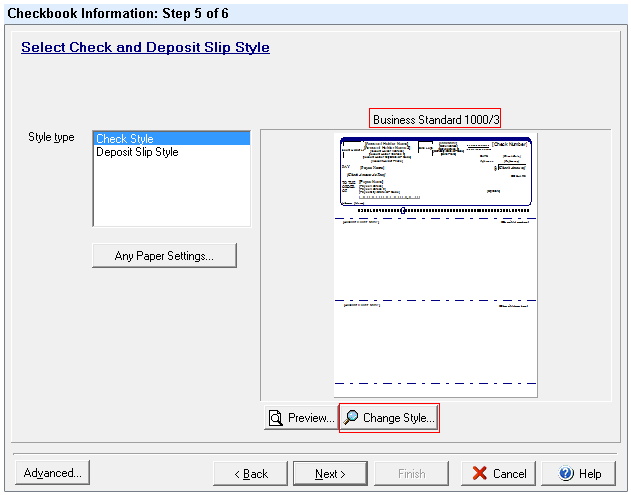
12. Either keep the default check style or click on the "Change Style" button to select a check style of your choice. Click on the "Next" button when complete.
Image 10
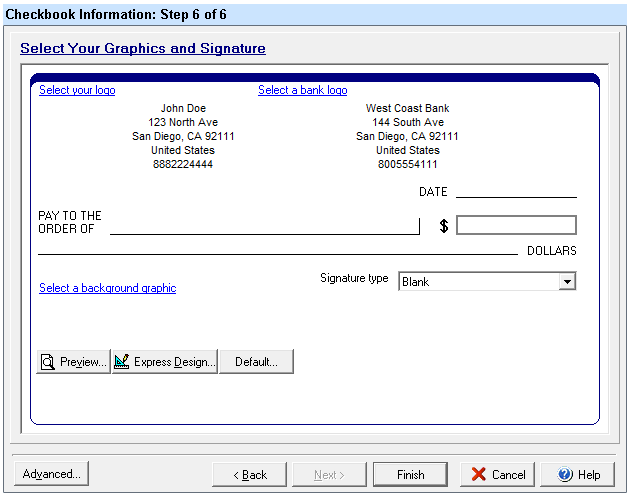
12. Confirm all information is correct and click on the "Finish" button to save all information. If any information is incorrect click on the "Back" button to return to that step and correct the error. For information on adding logos or using signatures please click on this link:
https://www.versacheck.com/web/support/article.aspx?id=281
Image 11
13. A window will appear will direct you to the gValidate website so that you can begin the process of validating you account. Click on the "Validate Now" button if you have not complete the gValidate process.
NOTE: Checks will print VOID on them until the account has been successfully validated by gValidate. This is done to prevent someone writing checks on an account they do not own.