Export Transactions
The Export Transactions feature will allow you to export information about any of the transactions you select from any or all of your VersaCheck accounts. The Export Transactions wizard can be opened from the File menu by clicking Export and then selecting Transactions.
The first step in exporting transactions is to choose the accounts to draw transactions from and to select the specific transactions to be exported. (Note: Exporting transactions with this feature merely creates a new information file with the transaction data, and does NOT remove the transactions from your VersaCheck program records.)
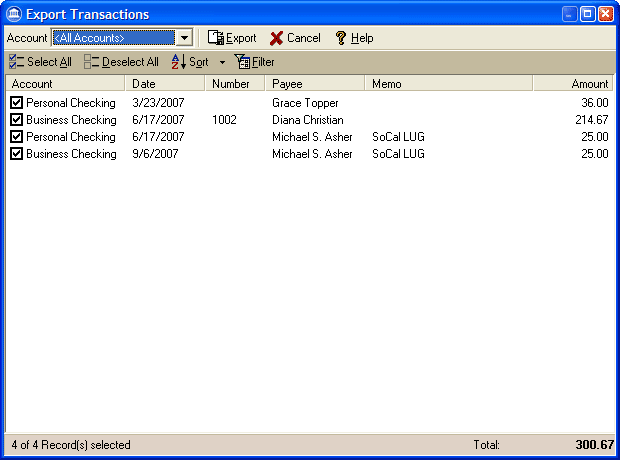
- Select the accounts you wish to choose transactions from by selecting a specific account or All Accounts in the Account drop down menu box.
- Under the Account column, place a check next to all the items you want to export. You may select all items or clear all items by clicking on either the Select All or Deselect All buttons respectively.
- If there are a large number of transactions to view, you may use the Sort button to control the display order or use the Filter button to further control which transaction items are listed.
- Once you have displayed and selected the transaction items you wish to export, click on the Export button at the top to bring up the simple Export Transaction wizard.