ActiveCheck™ Print
The ActiveCheck™ Print dialog allows you to setup connections and accounts
from a client machine in conjunction with the VersaCheck ActiveCheck™
Server.
ActiveCheck™ Server uses a client/server model to centralize account information and activity so that multiple users can simultaneously access and utilize the same data. One example of this model would be multiple users creating and printing checks drawn off the same account. By setting up the ActiveCheck™ Service on one central machine, multiple client machines can send information/transactions to and receive information/transactions from the server machine in real time. The ActiveCheck™ Print dialog allows a client machine to set up how it will connect to the ActiveCheck™ Server and to set up information about printers, accounts and check information for working with the ActiveCheck™ Server.
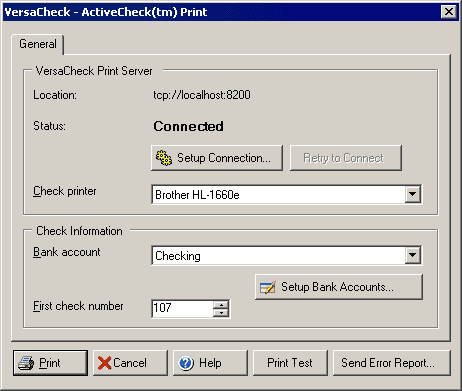
At the top of the dialog window the Location label shows the current setting for the protocol, host and port that the client machine will use for connecting to an ActiveCheck™ Server. Directly below the Location label the status of whether the connection is active or inactive is displayed. The Setup Connection button will open a dialog box that lets you change the connection type, host and port that the ActiveCheck™ client uses to connect. Once the connection information has been changed or if the connection fails to initiate when the Print dialog opens, Clicking the Retry to Connect button will activate the connection.
The Check printer drop down menu will allow you to select which printer to use for printing checks, and will display a list of network and local printers that are available on the server machine. Note: During the VersaCheck ActiveCheck™ Service installation it asks for the account that the server should be run under in Windows Services, this must be the same administrative account that was used or will be used to add printers. For example, if John_S is the account holder who installs the ActiveCheck™ Service, then John_S must also be the one who set up - or later adds new - printers using Windows dialog for adding printers in the control panel. For more information about VersaCheck ActiveCheck™ Server, please see the related help file that installs with that program.
Under the Check Information section, the Bank account drop down will allow you to select from any accounts that have been previously setup. If there are no accounts or you need to add a new account, click the Setup Bank Accounts button to open the New Account wizard. If the First check number will be different than what is currently set up in the account you can manually enter the correct number in the First check number box.
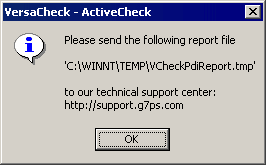
Click the Print button to print the pending check(s) or click Print Test to print a test check to ensure the correct alignment of your check. If you encounter an error you can click the Send Error Report button to get the name of the file you need to email to the G7 Support department: